

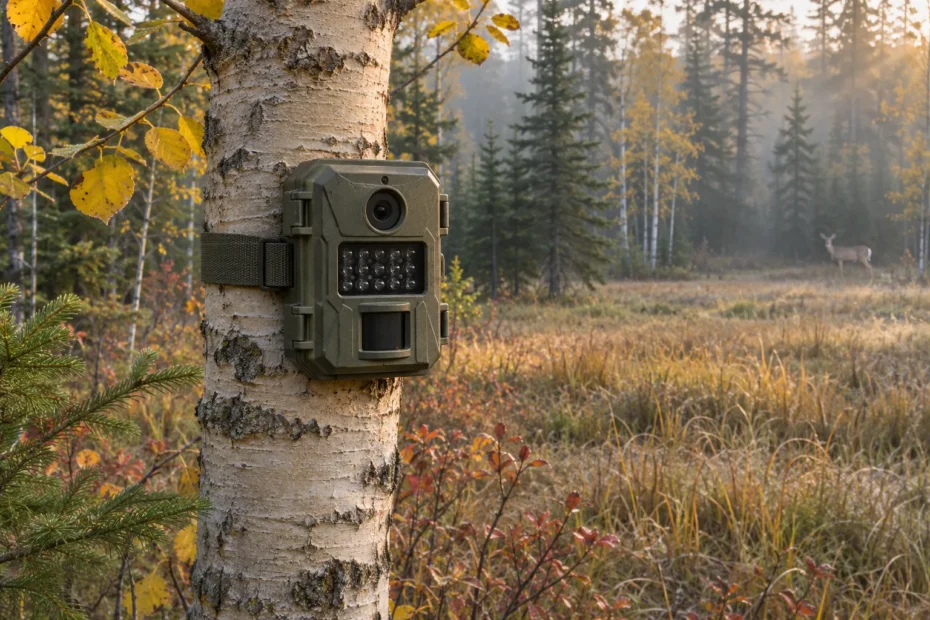
AI cover illustration of a trail camera beside a woodland crossing.
Setting up trail cameras for scouting starts with a place you have permission to use and a question about that spot. Aim across a clearing to see whether deer pass through while the camera is working. If you want to identify a hare at the edge of that clearing, test a lower, narrower view.
Pick the frame, walk it in both directions and inspect the saved files before you leave. A blinking test light confirms a trigger. The saved frame shows whether the subject had already left the picture when the camera took it.
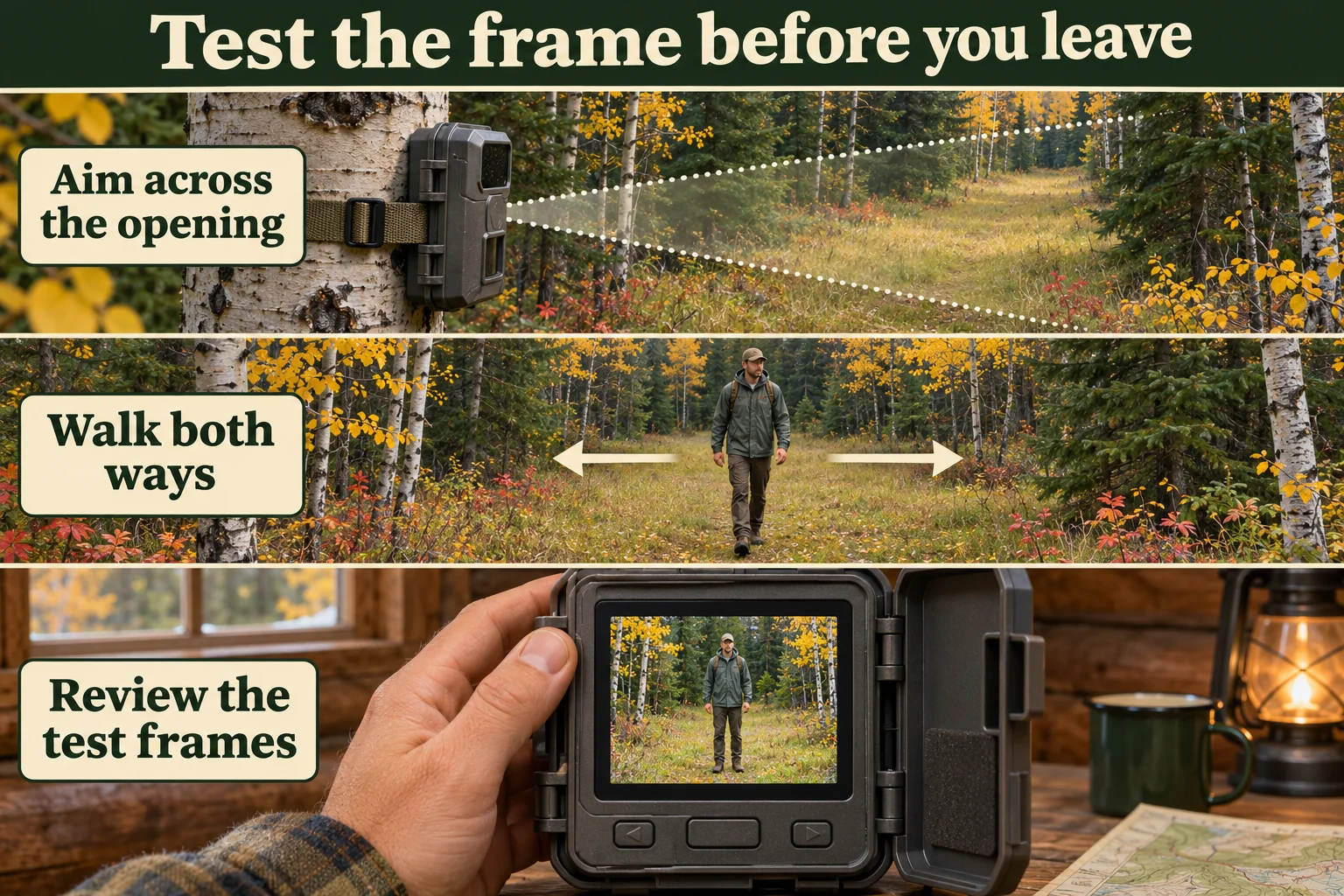
Check permission before leaving a trail camera
Write down the parcel, the dates, the kind of camera and what you plan to use the images for. The person who manages the land needs all four to give you a useful answer. Ask whether you may leave the unit unattended and what conditions apply to the mount, the view and the removal date. On a hunting trip, check the wildlife rules for the intended use as a separate step. A landowner can agree to a mount on a tree, but that agreement does not change the province’s rules about hunting equipment.
Private property, Crown land and protected areas
- Private property. Ask the owner or occupier for permission to enter, attach the camera, leave it for the agreed dates and come back to service and remove it. Point out the exact tree or post and describe what the lens can see. A general invitation to walk the property leaves those details open. Ontario’s hunting guidance advises asking permission and warns that unsigned land can still be private. Ontario’s guidance on trespass and access
- Provincial Crown land. Use the province’s mapping and policy resources to identify the land manager, then ask about leaving equipment in the exact area. Ontario’s Crown Land Use Policy Atlas provides area policies, but the province says its private-land mapping is approximate. A colour on the map can guide your first call. A mapped access road or permitted day use cannot answer whether you may leave a camera at that point. Ontario’s Crown Land Use Policy Atlas and its limits
- Parks and conservation areas. Read current orders and contact the office that manages the specific site. Section 7 of the National Parks General Regulations lets superintendents restrict or prohibit activities. Parks Canada lists a research-permit requirement to install remote motion-activated trail cameras in Banff, Yoho and Kootenay National Parks. A separate order covers Riding Mountain National Park and has applied since November 10, 2025, until further notice. Those notices name the parks they cover. Check the relevant office for any other site. Federal regulation · Banff, Yoho and Kootenay order · Riding Mountain order
If the location is part of an Indigenous-managed area, contact the relevant authority for access and installation requirements. Check for overlapping restrictions when a road runs alongside a park or crosses several parcels. Save the area map, the manager’s answer and any conditions with your deployment notes. Park research cameras operate under permissions and procedures that apply to that project. Seeing one on a trail gives a visitor no permission to hang another.
Give the manager a location they can check. Include a pin, the parcel or management area if known, and the nearest road or junction. Mention whether you plan to upload images or record audio. Ask who to contact if someone reports an issue with the camera. If you move to another tree after a storm or change the project from observation to scouting for a hunt, check the terms again. Both changes can put the deployment outside what you originally discussed.
British Columbia and Québec restrict different uses
Rules checked November 8, 2026. Use the current provincial text for your dates and location.
In British Columbia, section 18(1)(r) of the Hunting Regulation prohibits using a wireless camera for hunting in Region 1 year-round and in Regions 2 through 8 from August 1 through December 10, inclusive. The definition in section 1 turns on whether a sensor-operated camera can send images remotely to an electronic device. The rule is broader than receiving a live notification. Treat any unit with that capability as wireless when checking the rule. Ask a conservation officer about your specific intended use if it is unclear, and check the management unit before buying or deploying anything. Region 1 includes some mainland coastal areas as well as Vancouver Island. B.C. Hunting Regulation, sections 1–3 and 18
Québec’s hunting guidance prohibits using a device to detect or indicate that an animal is immediately present when you are at the hunting site intending to hunt. The province gives the example of a smartphone connected to a working camera system at the site while an armed hunter watches for game. Québec’s example concerns the situation and the information being used. B.C.’s wireless provision adds its own geographic and date restrictions. Check the rules where you will hunt, including the rules for the particular species or managed area. Québec’s current guidance on prohibited gear
Two worked site decisions
Riding Mountain, Manitoba. You are visiting and want to leave an SD-card camera for one night beside an animal path. You plan to attach it by a strap and have no interest in hunting. The superintendent’s order concerns installing a remote motion-activated camera. Card storage, a removable strap and a short stay leave the research-permit requirement in place. For this visit, leave the unit packed and use a permitted viewpoint and handheld optics instead. If you are part of a research project, contact the park’s research coordinator before fieldwork. Parks Canada research and collection permits
A private woodlot in B.C. Region 3 in September. The owner says you can strap a camera to a fence post. You want to use a cellular unit to choose a place to hunt deer that month. Decline that deployment. Section 18(1)(r) covers the planned hunting use in Region 3 at that time, and the owner’s permission only answers the land-access question. Ask the local authority which scouting methods apply to your situation. If you consider any permitted setup, check the frame from the post. A gate used by workers or neighbours may be reason to choose another spot even when the mount is allowed.
Keep people out of the frame
Before arming the camera, stand where someone would pass on the nearest trail, driveway or field access. Check the actual test image or live preview. Watch the corners of the frame as well as the centre. A path you cannot see from directly behind the camera can still appear at the edge of a wide lens. Think about how the view will change after leaf fall, when a normally screened campsite or neighbouring property may become visible. Choose another site if you cannot keep people and their access routes out of the expected view.
Use still photos if they answer your wildlife question. If you need video, check whether the camera records audio and switch it off where the model allows. For connected cameras, find out who can view uploads, whether other accounts are linked and where copies are kept. If your test captures people, correct the angle or take down the camera. For a personal project, discard incidental footage of people when it is no longer needed, including synced copies you control, and keep it out of photo shares. Projects with a permit or a formal privacy policy should follow its handling instructions.
The federal private-sector privacy law, PIPEDA, has a narrow personal or domestic purpose exclusion for individuals who use the information solely for that purpose. An organization or commercial project should confirm which federal or provincial rules apply to its own setup. The federal privacy commissioner’s guidelines for private-sector organizations explain why limiting the camera’s field of view, securing files, limiting retention and avoiding unnecessary audio help reduce intrusion. Use those principles to plan your frame and review process. Where a manager requires notice or signage, agree on it before setting up. PIPEDA, section 4 · Federal privacy commissioner’s surveillance guidance for organizations
Keep a private site record and a separate set of images for sharing. The site record can keep the exact pin, access directions and landowner’s contact details so you can retrieve the unit. If you share a wildlife image, check whether the file, caption or background reveals a sensitive site or a neighbour’s property. A general area and month may tell the story without a route to the camera. If you are submitting images to an organized survey, use its own reporting and location-sharing instructions.
Leave no attractant and set a removal date
For ordinary wildlife observation, select an existing crossing and let the camera record whatever passes. Food, salt or a scent lure changes what brings an animal into the frame and makes it harder to interpret ordinary movement. Attractants can also draw animals toward places people use. Alberta’s wildlife watching guidance advises against baiting with food or scents. Hunting rules may also restrict attractants for a particular species or location. Ontario, for example, lists placement limits for black bear hunting bait around buildings, roads and certain marked public trails. Check the actual rule if the intended activity involves an attractant. Alberta wildlife-watching guidance · Ontario’s black bear regulations summary
Avoid setting up at a nest or den, and keep service visits to what the work needs. Use the attachment method the manager permits. Where a strap is allowed, choose one that does not cut into the tree, and avoid trimming live growth just to make a better frame. Set the pickup date before you leave and put it in your calendar with a backup day that still falls inside your permission. Save the coordinates privately and note how many straps, locks, cards, power leads and brackets you installed. Remove them all. If a closure or unsafe conditions prevent retrieval, contact the manager rather than crossing a closure line to get the camera back.
If you run more than one unit, give each a simple site code and write that code beside the removal date. When you pack out, compare the gear you have in hand with the original list. If an item is missing, tell the land manager where it was last mounted and follow their instructions about a return visit.
Aim at the part of the trail you can test
Pick a short stretch of an existing animal route where you can see the ground on both sides. A gap between two fallen branches gives you a better starting point than an open hillside with five possible routes. Choose a stable, permitted support. Look from the camera’s position for anything that will hide legs, brush against the sensor or fill the foreground when it moves.
Think about three areas. The lens can see the whole picture, the passive infrared sensor can trigger over a different area, and the night illuminator can reach only part of the scene. A coyote far across a clearing might be visible in a daylight frame taken for another reason without ever setting off the camera. A closer animal might trigger the camera at night and still appear as a dark shape beyond the useful light. Aim so the expected crossing falls within all three areas.
A passive infrared sensor, or PIR, responds when the infrared energy arriving from different parts of the scene changes enough. A moving animal’s outer surface can be warmer or cooler than the background surfaces. The sensor works without sending out a beam. The separate infrared LEDs on many cameras provide light after the trigger in low light. Extra flash reach cannot fix a missed trigger. A branch moving across a thermally different background, or a camera shifting on its mount, can also set it off. Western Canadian guidance on infrared triggers · Field study on missed passages
Set distance, height and angle at the crossing
- Pick a working distance. Start by testing a clear crossing about 3–5 metres from the camera if the terrain and your model suit it. That range comes from Western Canadian field guidance for setting up and checking a view. Measure from the lens to the crossing, rather than to the far end of the visible trail. Check the result at night before relying on that distance for identification.
- Set height relative to the ground the animal uses. On level ground, start near the target animal’s body height, then inspect the frame. A camera fitted waist-high on the uphill side can end up well above a hare on the downhill side. If you want several sizes, leave room for a tall animal’s head and test that the lower part of the crossing still activates the sensor. Lens height and tilt work together, so record both.
- Start with travel across the frame. Side-to-side movement through the detection area gives a PIR unit more opportunity to register an animal than a straight approach toward the camera. If you can see only a short slice of trail, test a slight diagonal that shows more of the lane while still giving the animal a sideways component. Check where the subject appears in the first saved image.
- Check the background and light. A north-facing view can help keep low sun out of the lens. On a slope or under trees, a different direction may show the crossing more clearly. Keep bright water, rising or setting sun and close objects that reflect night illumination out of the important part of the frame when you can.
The best height and tilt can change with the camera model, the animal and the distance. In an Ontario field experiment, researchers tested two camera models with people moving at heights that represented three sizes of mammal. Detection varied across setups. Ontario detection trials · Western Canada camera deployment protocol
Choose settings you can explain when you review the card
Check the manual for the model number on the camera. At home, set the clock, record the time zone or UTC offset and label the camera and its card. Use the storage type, capacity and write speed the model supports. Save any files you need before formatting. Some cameras offer an in-camera format, while other models require a specific preparation method. Confirm that a new test file can actually be opened from the card.
For a first trial to find out what passes, start with motion-triggered stills. If a single frame cuts off animals in your test, try a short burst if the menu offers one. Use video when seeing the sequence matters, such as distinguishing a single quick crossing from an animal that pauses and turns back. Compare short clips with stills on the same camera to see whether they answer the question and how much space the files use.
- Sensitivity. Start with the maker’s recommendation for your use. If the camera misses the low crossing in your test, fix the aim first, then see whether more sensitivity helps. If wind moves a sunlit branch through the sensor area, re-aim to avoid the branch before lowering sensitivity. A lower setting can lose small or distant animals.
- Burst and delay. A burst changes how many frames one trigger produces. The delay between triggers sets how soon a new sequence can start, while some models let you set a separate gap between frames in a burst. Check the labels in your manual. A long delay can skip a second animal following the first. A short one may produce dozens of similar pictures if an animal pauses.
- Scheduled reference photo. If the camera can run time-lapse alongside motion capture, a daily photo can show when a snowbank reached the lens. A saved photo confirms the camera recorded at that time. Use a walk test to check the motion sensor separately.
Use your own pilot files to estimate storage. For example, 150 triggers a day, three stills per trigger and an average file size of 1 MB would use about 450 MB daily before adding any video or scheduled photos. On that example, seven days use about 3.15 GB. Measure the files your camera saves and leave space for windier or busier days. Field guidance on trigger settings and storage
Run a walk test and inspect a real image
If your camera has a test indicator or aim mode, use it to find where a crossing triggers. Walk across the intended route from both sides. Test the near and far edges, and use the maker’s instructions for a lower-height pass where it is safe to do so. An upright person is a much larger target than a hare. Use the test to find weak spots in the setup, then check the first wildlife images before assuming it detects small animals reliably.
Next, arm the camera and wait for its normal start-up period. Cross again and inspect an actual saved image. Check that the timestamp is right, the subject is in the frame before reaching the far edge and the part of the picture you need is clear. For a night test, use a safe, familiar place and the same working distance. A pale branch in the foreground can dominate exposure or block what you wanted to see. Remove the obstruction from the frame by shifting the aim.
Keep one reference frame and record the mounting height, distance, tilt, direction, battery type, settings and date. If you take the card out to see the test, put it back and repeat the normal arming sequence before leaving. WalkTest can behave differently between models. For example, the RECONYX HyperFire 2 Professional guide documents automatic arming after inactivity in WalkTest. Confirm the behaviour of the exact camera you brought. RECONYX HyperFire 2 Professional manual · Deployment records and reference photos
Keep the setup working through weather and poor signal
Plan a short first run so you can inspect the results before committing to a longer interval. A windstorm can shift a strap or bring a branch into the frame. A snow drift can raise the effective ground level enough to crop an animal or cover the lower part of the camera. After a thaw, the same mount may look too high again. Check how the site changed before changing sensitivity or assuming a fall in detections reflects animal activity.
Follow the manual for battery chemistry and operating temperature. A battery that fits the tray can still be the wrong type. The HyperFire 2 Professional manual, for example, recommends particular lithium or NiMH cells, discourages alkaline cells and provides a battery-type setting for the gauge. Use a matched set and check the charge before you leave. If you use an approved external pack or solar unit, test it with the camera and check whether the panel will stay clear of shade and snow. Runtime depends on the unit, settings, temperature and what the camera does between visits.
At a service visit, take a compatible spare card and fresh approved power. Check the seal and clean the windows as the manual directs. Turn the unit off before removing the card if the manual requires it. Keep the original files and verify the copy before clearing the card. Log the time you took the camera out of service, the time you re-armed it and any change that would affect what it sees.
Treat a cellular upload as a separate test
Make a test capture and check that it reached the account for the right camera. The unit has to capture the file, then connect and send it. A delayed alert can reflect the sync schedule, signal, plan or account settings. Check the camera’s last sync and status before interpreting a quiet app. At your next authorized visit, compare the newest files on the card with the latest files in the app. If files are on the card only, troubleshoot the upload. If neither has a test file, check the power, card and arming sequence first. SPYPOINT’s connectivity checks
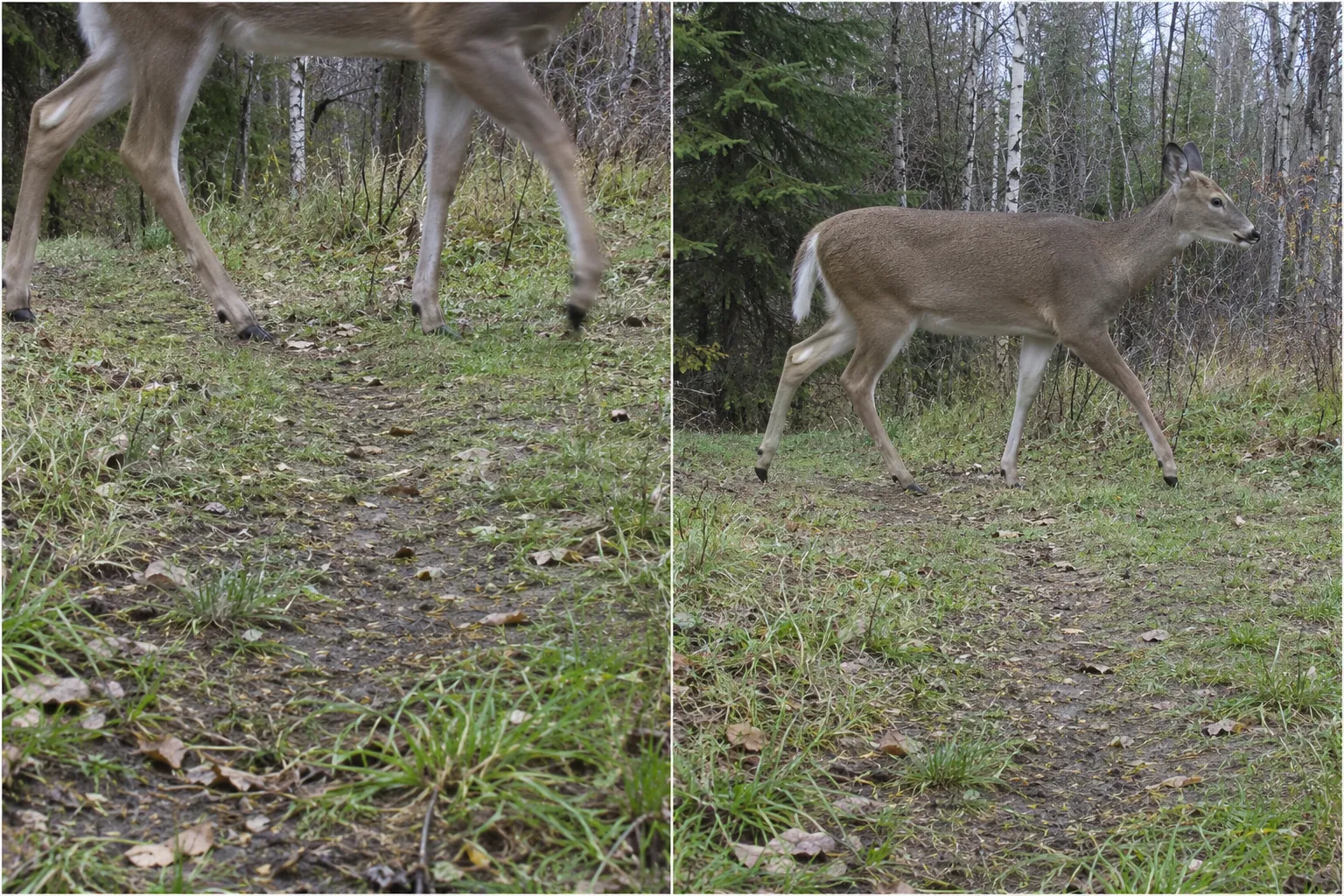
Change one thing at a time when you troubleshoot. With empty frames around sunrise, look for glare or moving branches in the first images, then repeat the same test after changing the aim. If only the rear half of a fast-moving animal is visible, see whether the lane gives it room to stay in frame after the sensor fires. A longer burst can show what happened after the first frame. It cannot recover the part of the crossing that happened before the first exposure.
What did the test camera do?
Open the result that matches your own. Change one part of the setup at a time, then repeat the same pass so you can tell what helped.
The camera missed my pass
Check that the unit is armed, the card can save a file and you walked through the model’s tested detection area. Walk across the lane again before trying a different angle. If the camera still does nothing, test the unit at home with the model’s recommended card and power supply.
I got a picture of legs or a tail
Review where the subject first enters the saved frame. A frame full of ground needs a small aim adjustment. A tail at the edge can also mean the trigger came too late for the path. Compare both directions on the same route before moving the camera or changing its capture mode.
The card is full of empty frames
Look for a pattern before touching sensitivity. Windy-period clusters, a loose mount or sunlit grass near the sensor can send you back to the placement. Try a clearer view and a firm mount before reducing sensitivity, then retest your target crossing.
The day test works but the night frame is dark
Look at the near edge and the far edge separately. A branch near the unit can be lit brightly while a farther animal is hard to see. Run a night test at your chosen crossing and move the view past nearby obstructions. Check the model’s night mode and power before buying another camera.
The app is quiet but the camera may still be recording
Separate capture from transmission. If access is permitted, compare files saved locally with the app’s last check-in. A missing alert alone tells you little about what walked by. Use the model’s instructions to check signal, plan status and upload schedule.
Read the card in the context of the setup
Copy the card before sorting. Keep the original filenames in a private folder named for the station and deployment. When you label an image, write down what you can see before naming the animal. A cropped hoof or a flash-lit flank may be good evidence of movement through the frame without giving you a confident species ID.
Use a small record sheet alongside the images. Include the station ID, when it went live and the time zone on the camera. Record the aim and settings, any card or power changes, and when you picked it up. A second person should be able to put the next camera in roughly the same position from your notes.
Record when the clock is wrong. If you can verify that it was consistently an hour ahead, keep the camera time and the corrected time in separate columns. If a battery change reset the clock and you cannot tell when, leave the times uncertain. A useful picture can still tell you what passed through the view without telling you when it happened.
Compare working nights instead of card totals
Suppose one camera recorded six groups of deer photos across six known working nights and another recorded eight across sixteen. The first has about one recorded event per working night. The second has about half an event per night. Neither rate estimates how many deer live there. A narrow crossing and an open meadow may yield different detection rates even when the animals use both areas.
For a personal log, define an event before you review the photos and apply the same rule to both stations. You might treat an uninterrupted sequence of the same animal crossing as one event and mark ambiguous repeats separately. A burst of five images can show one animal in five positions. In a formal survey, follow the project’s definition of an event and how it counts working days. The Western Canada guidelines explain survey effort and how frames are grouped.
Write “no deer detected” when the camera ran and you found no deer images. Write “effort unknown” if you cannot establish whether it ran. Keep nights with partial coverage separate if the question depends on time of day. A silent camera can miss activity when a plant blocks the sensor, snow buries the view or the animals use a crossing outside the frame.
| What you have | What you can record | What to check next |
|---|---|---|
| Four frames in one burst | One crossing sequence, with the number of visible animals recorded separately. | Check the direction of travel and later frames for a second crossing. |
| No deer files, but verified coverage | No deer detected in the monitored view for that period. | Look for signs outside the camera’s view without changing the original record. |
| A gap after a storm | Uncertain effort until the device and stored files can be checked. | Inspect power, the card, mount position and the next saved file. |
| Images start after an angle change | Separate deployments before and after the change. | Compare the actual view and working period before inferring a change in animal activity. |
If you have track sequences as well as images, use the guide to reading behaviour from tracks to describe movement without assigning an unverified motive. Keep tracks and camera frames as separate observations when you cannot connect them to the same passage.
Guide’s log · A fictional aspen-edge test
I set one camera on a permitted woodlot crossing after asking the owner where the walking route runs. I put a removable marker beside the centre of my intended frame and make two passes. One file shows the whole crossing. The other catches the edge of my coat and little else. The camera is mounted firmly, and the missed side is the one where the path curves sharply toward the lens.
I pivot the camera so I can see more of that side of the lane, then repeat both passes with the same settings. This time I can see where I came into the picture from either direction. I check the path behind the camera again and confirm that it has stayed out of the frame. The marker comes home with me. I log the old aim as a test and the second as the deployment, with the clock on the camera set to local time.
At retrieval, I find pictures of an animal on two nights and a string of empty files when wind picked up. I keep those results separate. On the next trip I can test a different aim to reduce the wind triggers. If I move to a new tree, it gets a separate deployment note so a later comparison accounts for the different view.
Check the camera before you leave
Tick each item at the site. The checklist does not send your answers.
Save the station location privately. The maps and GPS guide can help you plan the retrieval route. For a no-camera outing, start with the field guide to watching wildlife from a distance or explore the tracking and scouting hub.
Check your model’s storage table before buying a spare. The Browning manual gives the supported card types for this camera. SanDisk’s specifications give the class and format of the exact card below.
A local-recording setup for a first deployment
If you can service the site in person, start by checking that the camera and card work together. Verify the exact model on the listing before ordering.
As an Amazon Associate we earn from qualifying purchases. Check delivery and total cost for your address on Amazon.com.
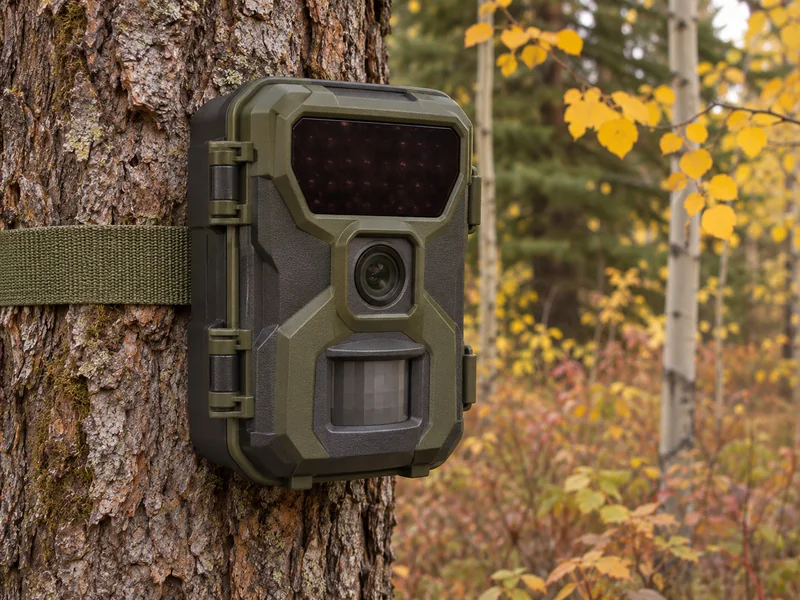
For a camera you can return to and check
Browning Strike Force Pro X 1080 Trail Camera
This non-cellular camera saves footage to an SD card. Plan a return visit to see what the camera recorded.
- Use the built-in colour screen and adjustable bracket to check the frame while you can still change the angle.
- The camera records stills and 1080p video with sound. Start with stills on a short test run to see whether the whole animal stays in frame.
- The manual covers both full-size SD and SDXC cards. Check the battery tray on the unit you receive, since published Browning pages list different AA counts for this model.
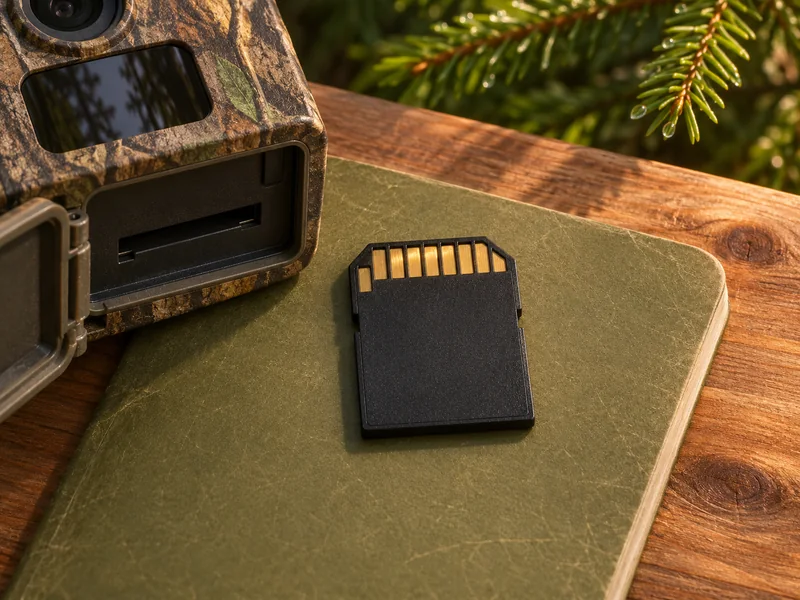
For a spare card on the next check
SanDisk Ultra 32 GB SDHC Memory Card
Bring a compatible spare so you can swap cards in the field and review the first card at home.
- This is a full-size 32 GB SDHC card rated Class 10 and UHS-I U1. It fits the format, capacity and speed class Browning lists for standard SD cards on the camera above.
- SanDisk’s advertised transfer figure refers to reading the card. Let your camera manual determine the format and write-speed class you need.
- Back up and open a few files to check the copy before clearing the card. Confirm that your camera can record and read a test image on the spare before you leave it in the field.
Try a guided wildlife outing without installing a camera
Affiliate disclosure: We may earn a commission if you book through this Viator link. Check seasonal dates, conditions and the exact meeting point before booking.
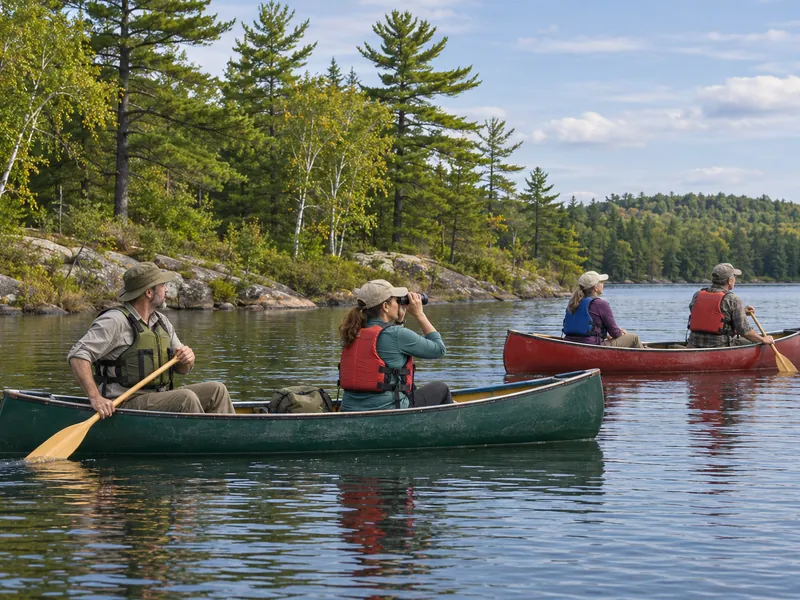
Canoe Lake, Algonquin Provincial Park, Ontario
6 Hour Algonquin Park Canoe Trip
Take a guided paddle if you want to learn where animals feed and travel without installing equipment. Ask the guide about the habitat you pass and watch for birds or turtles from the water. Wildlife sightings vary.
- Meet at Canoe Lake Access Point. The naturalist guide introduces paddling and interprets the shoreline habitat along the route.
- The listing includes a shared canoe, paddle, life jacket and picnic lunch. Budget separately for the park vehicle permit if you drive.
- The trip includes active paddling and a short hike. Viator lists a minimum age of seven. Check the activity requirements for your group before booking.
Trail camera setup questions
How high should I mount a trail camera?
Use the target’s height and the shape of the ground. Start with the model’s instructions, then inspect a saved image at the place you expect an animal to cross. A slope, snow cover or a small target can make the height above the tree’s base a poor guide to what the lens sees.
Should a trail camera always face north?
North is worth testing when sun strikes the lens or hot, moving vegetation fills the picture. The useful position is the one that covers the crossing, excludes people and avoids glare during the hours you need. Inspect actual frames and take a second test after changing the aim.
Can I leave a trail camera in a national park?
Check with the specific park before you bring a unit. Named parks such as Banff have a published restriction on installing remote motion-activated trail cameras, with a research permit exception. Access to the trail gives no permission to install one. See the Banff order and contact the relevant park office for your location.
How often should I check the camera?
Set the first check according to access, the test results and how long power and storage are likely to last under your settings. An early check can reveal a full card or poor angle before you lose the whole deployment. After that, avoid repeated trips that disturb wildlife and keep your promised retrieval date.
Can I use trail camera timestamps to predict the next visit?
Use verified timestamps to describe what happened during the deployment. Look for the same pattern across comparable working periods and keep track of weather, time changes and setup changes. Even a repeated pattern gives no assurance that an animal will pass the same way tomorrow.